In the example (from the updated Rapide sample model) a
simple javascript control is created to show a traffic light which the developer
can interact with using action diagram functions and the user can press to change
the state.
This is an occasional blog about IET's use of CA Gen for internal development as well as thoughts, tips and techniques on using CA Gen for application development. It is aimed at the CA Gen development professional, so please excuse the jargon and assumed level of knowledge about CA Gen. Reference will also be made to our products to put the development into context, so if you are not familiar with these, please visit the IET web site by clicking on the company logo.
Thursday, 19 December 2013
Grid Layout
A new feature in Rapide is the ability to display the contents of a listbox as a grid instead of a simple row-based listbox. With a grid layout, the Rapide runtime
automatically displays the listbox rows in cells,
with multiple cells per line, according to the overall width of the listbox. As
with other types of listboxes, column data may be enhanced as images and
sophisticated layout within the cell is accommodated with the same approach as
row templates.
Tuesday, 3 December 2013
Nullable Dates and Date Pickers
A null date in Gen (represented by datenum(0) or 01-01-0001) is valid and is often used to indicate that the date field is not set.
However most date picker controls do not support a null date - they always have a value, and so if you use a date picker OCX control, you may have to add an additional checkbox beside the date control to specify whether the date is set or not.
This workaround is easy enough to implement, but can be time-consuming if you need to implement it for many date fields across many windows and requires changes to the action diagram code to enable/disable the date control based on the setting of the checkbox.
With a conversion to Rapide, you may want to implement date pickers by default and still support null date values. To make conversion easier, Rapide now supports the concept of a nullable date picker.
This is simply done by checking the Nullable checkbox when defining the field:
However most date picker controls do not support a null date - they always have a value, and so if you use a date picker OCX control, you may have to add an additional checkbox beside the date control to specify whether the date is set or not.
This workaround is easy enough to implement, but can be time-consuming if you need to implement it for many date fields across many windows and requires changes to the action diagram code to enable/disable the date control based on the setting of the checkbox.
With a conversion to Rapide, you may want to implement date pickers by default and still support null date values. To make conversion easier, Rapide now supports the concept of a nullable date picker.
This is simply done by checking the Nullable checkbox when defining the field:
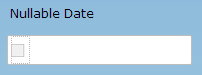
The date picker is then implemented with an automatic additional checkbox to indicate if the date field is null or not.
Nullable date with no value set
Nullable date with value set
Thursday, 28 November 2013
Row Templates
Row Templates are a new feature in Rapide that provides a mechanism for sophisticated layout of listboxes on browser and mobile platforms. They are especially useful for use on mobile platforms where HTML markup is not supported.
With the row template style, each row consists of a single column with the Gen listbox attributes placed as cells within the row. Click events are supported on each cell and for browser platforms the cells can also contain HTML markup.
The example below shows a row template layout. Each of the cells is specified in a separate attribute of the group view and the layout defined using the Rapide Designer.
Friday, 22 November 2013
Fixed Listbox Columns
When you have a listbox that contains many columns and the user has to scroll sideways to see all of the data, it is often useful to be able to fix the position of one of more 'identifier' columns on the left of the listbox so that these do not scroll, and hence the user is able to relate the data in the right most columns to the row identifier.
Rapide now allows you to fix the position of one or more columns so that these do not scroll horizontally. This is illustrated in the two images below.
After scrolling to the right, notice that the Type and Resource columns are fixed in position:
Listboxes with Markup
Another new feature for Rapide listboxes is the ability to use HTML markup to format the data in a cell.
The listbox below is a standard Gen listbox which has been enhanced with Rapide. The data in the Model column contains HTML code that displays the picture and text with formatting markup which is then rendered. The data in the Retailer column is a simple HTML link which will open the link in a separate tab of the browser when clicked.
Tree View Listboxes
The latest beta release of Rapide comes with some significant enhancements to listboxes.
Listboxes can now be easily transformed into a tree-view control with the addition of attribute views in the group view to indicate the tree level, expand status and bitmap name.
Another enhancement is the ability to specify a checkbox on the first column. This is associated to another attribute view that indicates the checked status.
An example of a tree view with a checkbox indicator is shown below.
Listboxes can now be easily transformed into a tree-view control with the addition of attribute views in the group view to indicate the tree level, expand status and bitmap name.
Another enhancement is the ability to specify a checkbox on the first column. This is associated to another attribute view that indicates the checked status.
An example of a tree view with a checkbox indicator is shown below.
Monday, 28 October 2013
Font Sizes and Display Resolution
When designing a GUI application in Gen, the controls are positioned using a pixel based co-ordinate system that specifies the position and size of the controls. In addition, fonts are specified using point sizes. A point is 1/72 inches, so for example 12 pt text is 1/6 inch high. In the 'normal or 100%' resolution on Windows desktop, the screen resolution is 96DPI (dots per inch), so 12 pt text is 16px (pixels) high.
If the user changes the screen resolution to say 120 DPI (125%), then the same 12pt text is now 20px high. However the remainder of the window design is still specified in pixels, and this can cause problems with the positioning of the text within the controls.
In the example below, notice the change in the window between 96 and 120DPI.
If the user changes the screen resolution to say 120 DPI (125%), then the same 12pt text is now 20px high. However the remainder of the window design is still specified in pixels, and this can cause problems with the positioning of the text within the controls.
In the example below, notice the change in the window between 96 and 120DPI.
Window with system resolution set to 96 DPI
Window with system resolution set to 120 DPI
To support the change in DPI, the designer would need to ensure that text fields and literals are wide enough to accommodate all of the text and avoid wrapping. Web Browsers also allow the user to change the zoom factor for an application.
For Rapide Browser and Mobile applications, Rapide uses pixel based font heights rather than point based, with the conversion from points to pixels based on 96DPI. This means that a UI design that looks correct in 96DPI will scale correctly irrespective of the DPI setting or browser zoom level.
Rapide Desktop applications still use a point based font size to ensure that fonts are scaled if the user requires a higher DPI setting.
Tuesday, 15 October 2013
Understanding and editing UTF-8 files
One of the design goals of Rapide was to enable internationalisation of the applications so that the user interface could be displayed in multiple languages, with the user's locale automatically detected and the appropriate locale specific translated text strings displayed instead of the default ones.
We chose UTF-8 as the encoding standard for the files that Rapide generates and uses, for example the GUI XML definition files and the string properties files.
Here are some links to various articles if you want to know more about UTF-8:
http://www.utf8everywhere.org/
When editing the files to create locale specific translations, you must use an editor that understands and preserves the UTF-8 encoding. For basic editing we use Notepad++ which can edit files in UTF-8 and also contains conversion utilities. On opening an existing file, always check that the encoding has been set to UTF-8. Many editors will attempt to auto-detect the encoding, but if the file only contains basic ascii characters below X'80', there is no difference between an ascii and UTF-8 file and so the editor will probably not set the encoding format to UTF-8.
One way around this is to insert a BOM (byte order mark) at the start of the file to indicate the encoding, but this is not recommended for UTF-8 and we have decided not to include a BOM in the files generated by Rapide.
When editing the files to create locale specific translations, you must use an editor that understands and preserves the UTF-8 encoding. For basic editing we use Notepad++ which can edit files in UTF-8 and also contains conversion utilities. On opening an existing file, always check that the encoding has been set to UTF-8. Many editors will attempt to auto-detect the encoding, but if the file only contains basic ascii characters below X'80', there is no difference between an ascii and UTF-8 file and so the editor will probably not set the encoding format to UTF-8.
One way around this is to insert a BOM (byte order mark) at the start of the file to indicate the encoding, but this is not recommended for UTF-8 and we have decided not to include a BOM in the files generated by Rapide.
Friday, 27 September 2013
QR Codes
The Rapide Controls demo has been updated to include an example of producing a QR code and rendering it on the window.
QR (Quick Response) codes have become widely used, especially in consumer facing applications, and a common use is to encode a URL that the user can quickly access by scanning the code.
The Rapide demo shows how a QR code can be dynamically created and displayed.
Visit http://80.177.61.42:81/demo and choose Dynamic Pages, or just scan the code below with your phone!
QR (Quick Response) codes have become widely used, especially in consumer facing applications, and a common use is to encode a URL that the user can quickly access by scanning the code.
The Rapide demo shows how a QR code can be dynamically created and displayed.
Visit http://80.177.61.42:81/demo and choose Dynamic Pages, or just scan the code below with your phone!
Subscribe to:
Posts (Atom)